Setting Up Your STIHL ADVANCE ProCOM: The Complete User Guide
So, you’ve invested in a STIHL ADVANCE ProCOM system—congratulations! These headsets are designed to make your workday more efficient, but to get the best out of them, it helps to know the "shortcuts."
Using the device
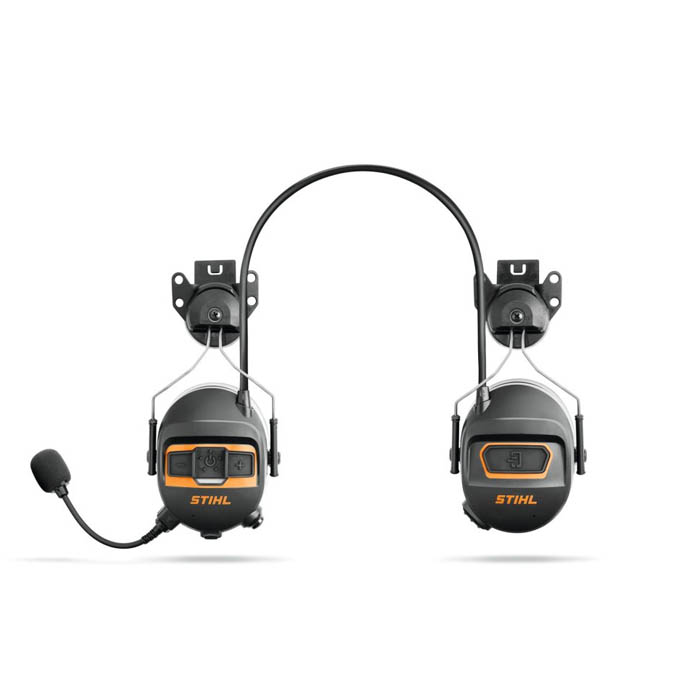
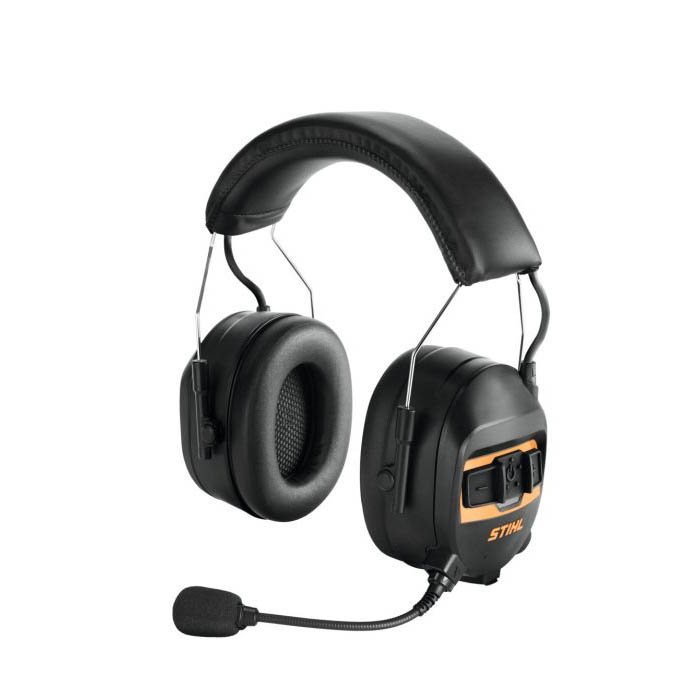
The ProCOM features large, ergonomic buttons that are easy to use, even when wearing heavy-duty work gloves.
| Feature | Operation | Why It Matters | ||||
|---|---|---|---|---|---|---|
| Power |
|
Quick starting at the beginning of the day | ||||
| Microphone |
|
|
||||
| Ambient Mode | Double-tap the Mute button. |
|
||||
| Smartphone Link |
|
|
Advanced Connectivity
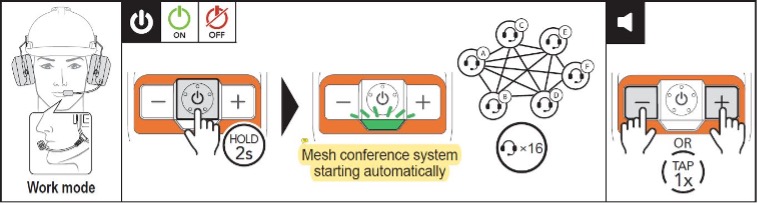
Seamless Team Intercom Setup The standout feature of the ProCOM system is how quickly it gets your team talking. To get started, simply hold the On/Off button for 2 seconds. The headset will automatically scan and connect to any other ProCOM units within a 400m radius, supporting up to 16 users on a single network. Use the ‘+’ and ‘–’ buttons to find your comfortable volume level.
By default, all units are set to Channel 1. If you find you’re within range but can't hear your team, double-check that you aren't Muted (Button 6) or that your channel hasn't been adjusted in the ADVANCE ProCOM App. Please note that the ProCOM uses a proprietary mesh system, meaning it is designed specifically for STIHL headsets and won't link with third-party brands.
Smart Site Management with the ProCOM App To unlock the full potential of your headset, we highly recommend downloading the STIHL ADVANCE ProCOM App, available for free on both the Apple App Store and Google Play. It’s the easiest way to manage your crew’s channels and save your favourite radio stations for the day ahead.
How to Pair Your Smartphone:
-
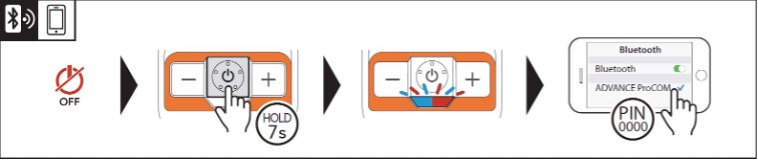
Start Fresh: Ensure your headset is switched off.
-
The 7-Second Hold: Press and hold the power button for seven seconds. You’ll see the LED flash blue and red and hear three short beeps—this means it’s ready to talk to your phone.
-
Sync Up: Find "ADVANCE ProCOM" in your phone’s Bluetooth menu and select it.
-
Check the App: Open the STIHL app. When the link icon in the top right turns from yellow to green, you’re officially connected.
A Note on Multi-Phone Use: You can actually pair two smartphones at once—perfect if you carry a work and personal mobile. Just keep in mind that if you're active on a call on one device and the second phone rings, the connection to that second device might drop out.
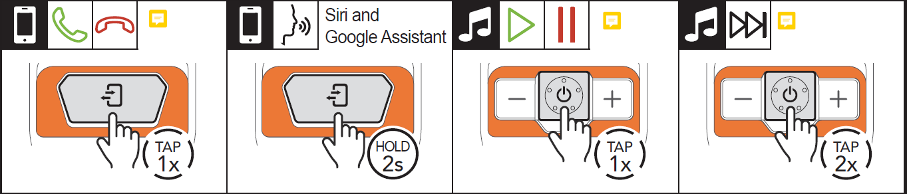
Handling Calls & Media on the Move To take an incoming call, simply tap the ‘Connect’ button on your right ear cup. A quick tip: make sure you answer via the headset itself; if you pick up using your phone’s touchscreen, the audio won’t route to your ears. When you're done, hit the same button to hang up.
Need a hand from your virtual assistant? Hold that ‘Connect’ button for two seconds to wake up Siri or Google. For your workday soundtrack, the On/Off button doubles as your remote—press once to play or pause, and double-tap to skip to the next track. If you’re juggling two phones, the headset defaults to whichever one you paired first.
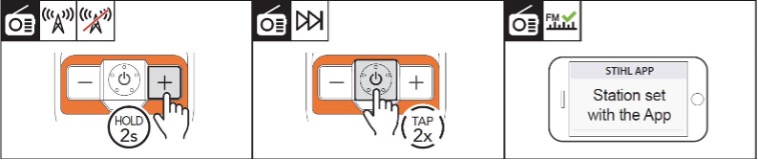
Staying Entertained on the Job Keeping motivated during a long day of mowing or hedge cutting is easy with the built-in FM radio. To toggle the radio on or off, simply hold the ‘+’ button for two seconds. If you want to find a different station, a quick double-tap of the On/Off button will cycle to the next available frequency. For even more control, use the STIHL ADVANCE ProCOM App to save your favourite stations so they’re ready for your next shift.
Safety and communication remain the priority: whenever a colleague speaks to you over the intercom, the radio volume will automatically dip so you can hear them clearly. If you prefer your music at a constant level, you can easily disable this "auto-reduce" feature in the Device Settings within the app.
Long Term Maintenance & Tips
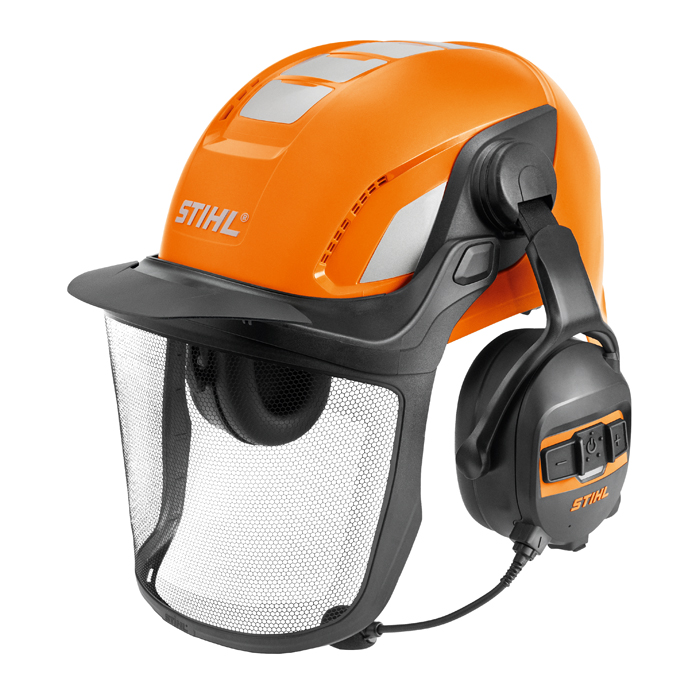
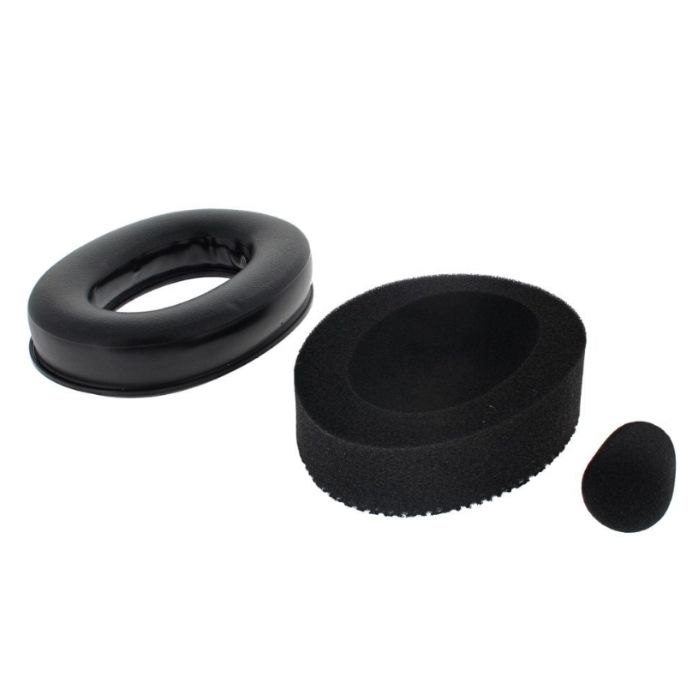
Sometimes, the STIHL ProCOM system will require firmware updates. This can be done by connecting your headset to a PC or Mac to update the firmware via the ProCOM Device Manager. We also offer spare parts like hygiene kits, replacement microphones, carriers and mesh visors to keep everything in good condition. Maintaining the visor and ear cups is especially important to maintain the safety features of the device. ProCOM can also be used in conjuction with the STIHL Wood List App to help record all relavent data about felled trees via voice input.
Ready to kit out your team? View the full STIHL ProCOM range here.